One project per client, and a daily view on top
Dina is a marketing consultant with several clients. Client work runs in ClickUp. In xTiles she has a project for every client, and a daily view in My Planner that Claude fills in: tasks from ClickUp and events from her calendar, pulled into one page each morning.
On paper this is the setup most consultants want. In practice, she told us, the page often holds too much:
"There's probably too much in it, because I get overwhelmed by it."
The problem is not missing information. It is deciding what belongs on today's page. Dina is still tuning her setup, and the two ways it went wrong are worth knowing before you build your own.
Too narrow, then too much
The first version showed only what was due today. That sounds focused, but it hid everything around it:
"That's great, but that's really giving me such a narrow picture, right?"
Worse, a task that did not get done simply disappeared from view the next day. So the next version carried every unfinished task forward. That fixed the disappearing, and created a new problem: "there were so many things in there." After a busy week, the carried-over list was longer than the day.
Both versions fail for the same reason. They treat the daily view as a mirror of all your tasks, when it should be a short list of decisions.
Step 1: give every kind of task one home
Before changing the daily view, cut the number of places tasks live. A simple split for client work:
- Client deliverables live where the client work happens. If a client team works in ClickUp, keep them there and let Claude read them.
- Your own work for each client, like prep, follow-ups and ideas, lives in that client's xTiles project, with a due date.
- The calendar holds meetings only, not reminders to do things.
- Notes hold notes. When a note turns into a to-do, move it into a project as a task.
Any task with a due date in an xTiles project shows up in My Planner on that day, so the client projects feed the daily view without extra work. For the full multi-client setup, see how fractional consultants manage multiple clients.
Step 2: design the daily view as a short list
If Claude builds your daily page, you can change what it brings in. Instead of "everything due or overdue", ask for sections with limits:
- Today's meetings from the calendar.
- Due today, grouped by client.
- Carried over, capped at five, oldest first, with a count of the rest.
- Pick three: an empty tile where you write the three things that will make today count.
A prompt to update an existing daily brief in Claude:
"Change my daily page: show today's meetings, then tasks due today grouped by client, then at most five unfinished tasks from earlier days, oldest first. Below that, write how many more unfinished tasks there are and which client projects they are in. Do not add tasks without a due date. End with an empty tile called Pick three."
The count matters. You still know the backlog exists, but it does not sit on the page as forty separate lines.
Step 3: keep the carried-over list short with a weekly reset
A cap on the daily view only works if the backlog does not grow forever. Once a week, open each client project and go through its open tasks:
- Re-date tasks that still matter to a real day this week or next.
- Remove the date from tasks that matter but have no deadline, so they stop counting as overdue.
- Delete tasks that no longer matter.
With one project per client, this takes a few minutes each. If you want Claude to handle part of it, see how to have Claude reschedule overdue tasks every morning, and set it to move only a few tasks per day.
Free templates for client projects and a calmer day
All four are free in the xTiles template gallery.
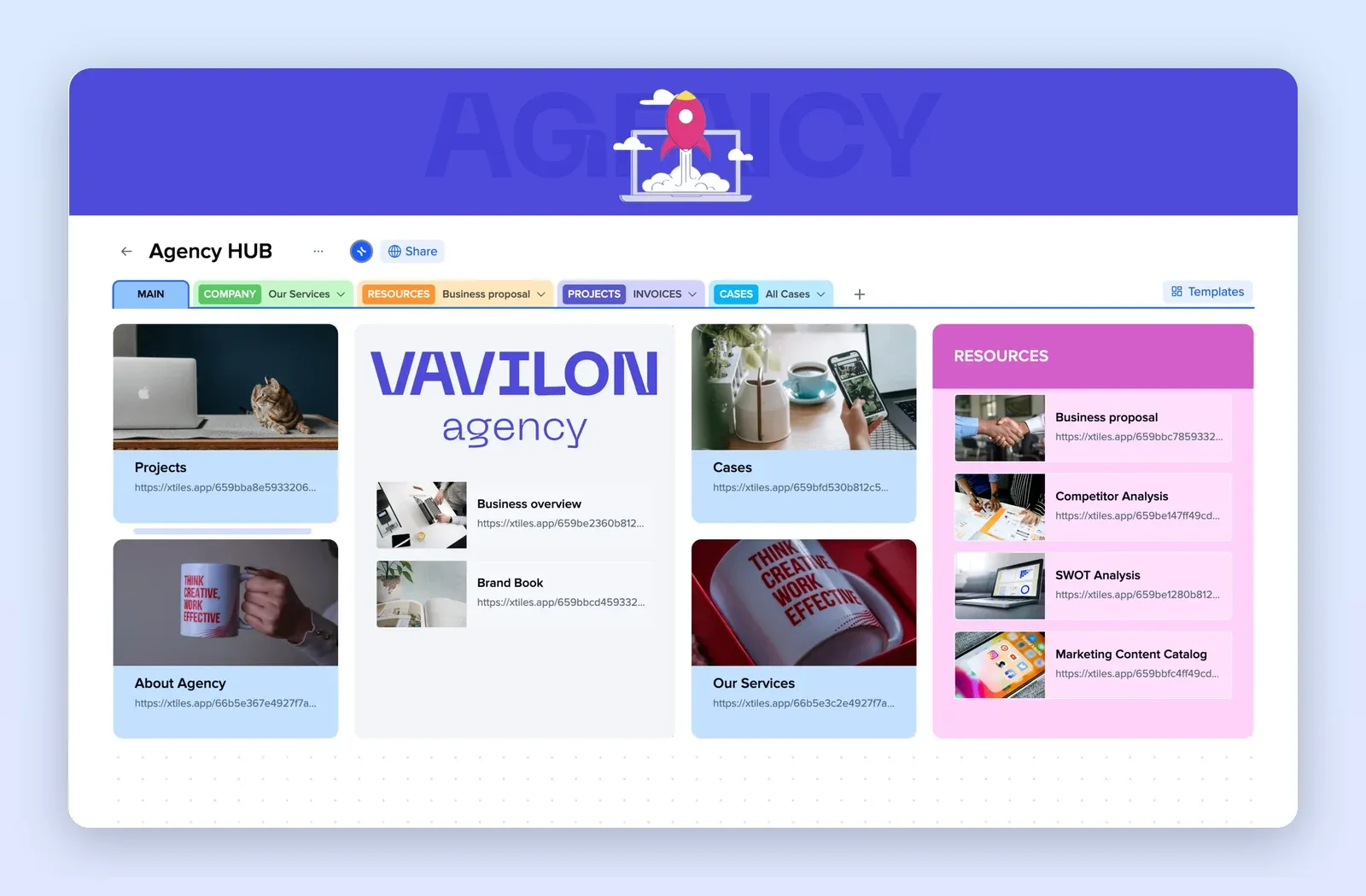
1. Agency Hub: one home for every client
Tabs for company, resources, projects and cases, with link tiles to each page. Use it as the index that points to each client project. Open the Agency Hub template.
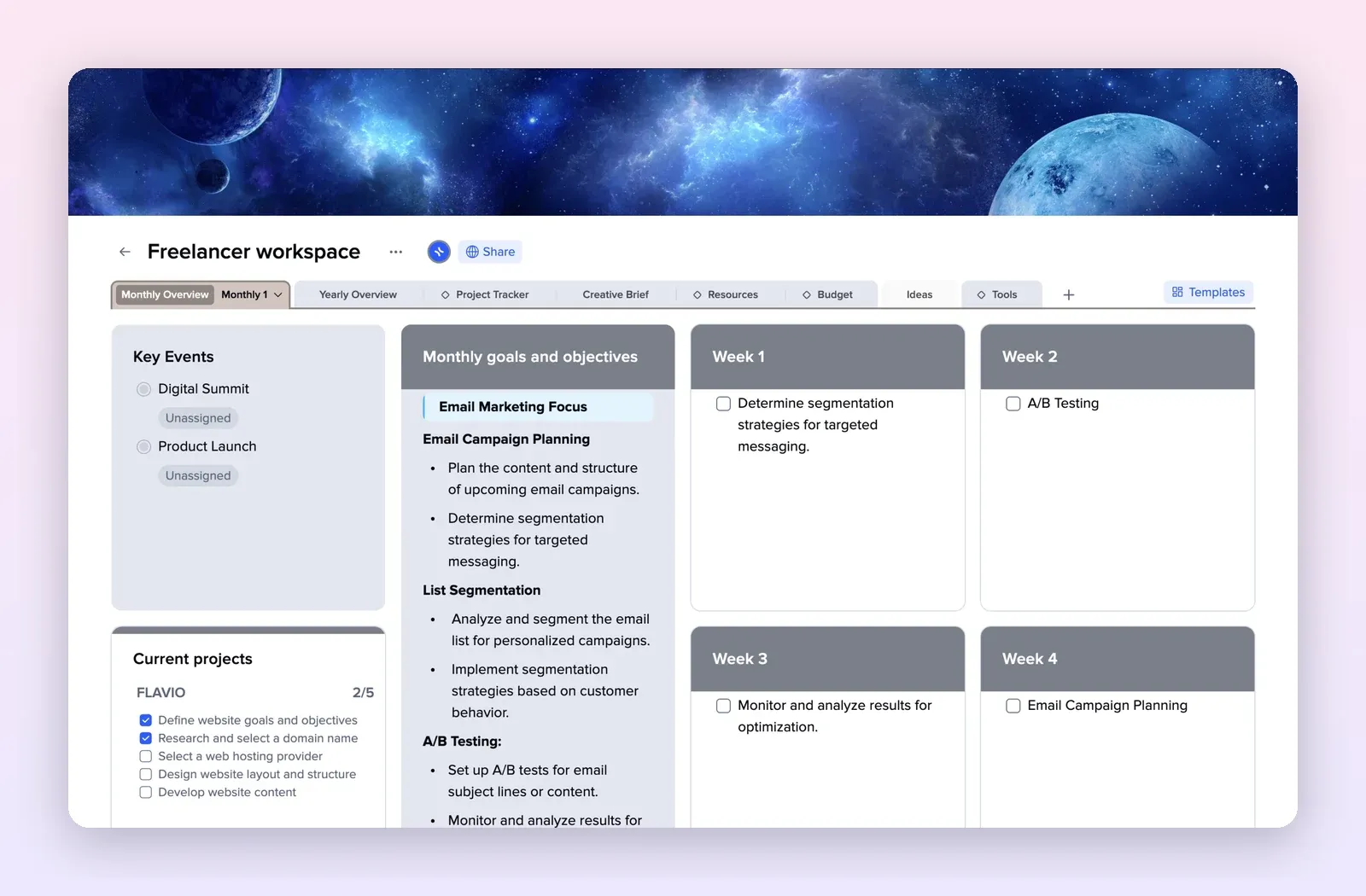
2. Freelancer Workspace: a month per client
A monthly overview with key events, goals and a tile per week, plus tabs for projects, briefs and budget. A good shape for a single client project. Open the Freelancer Workspace template.
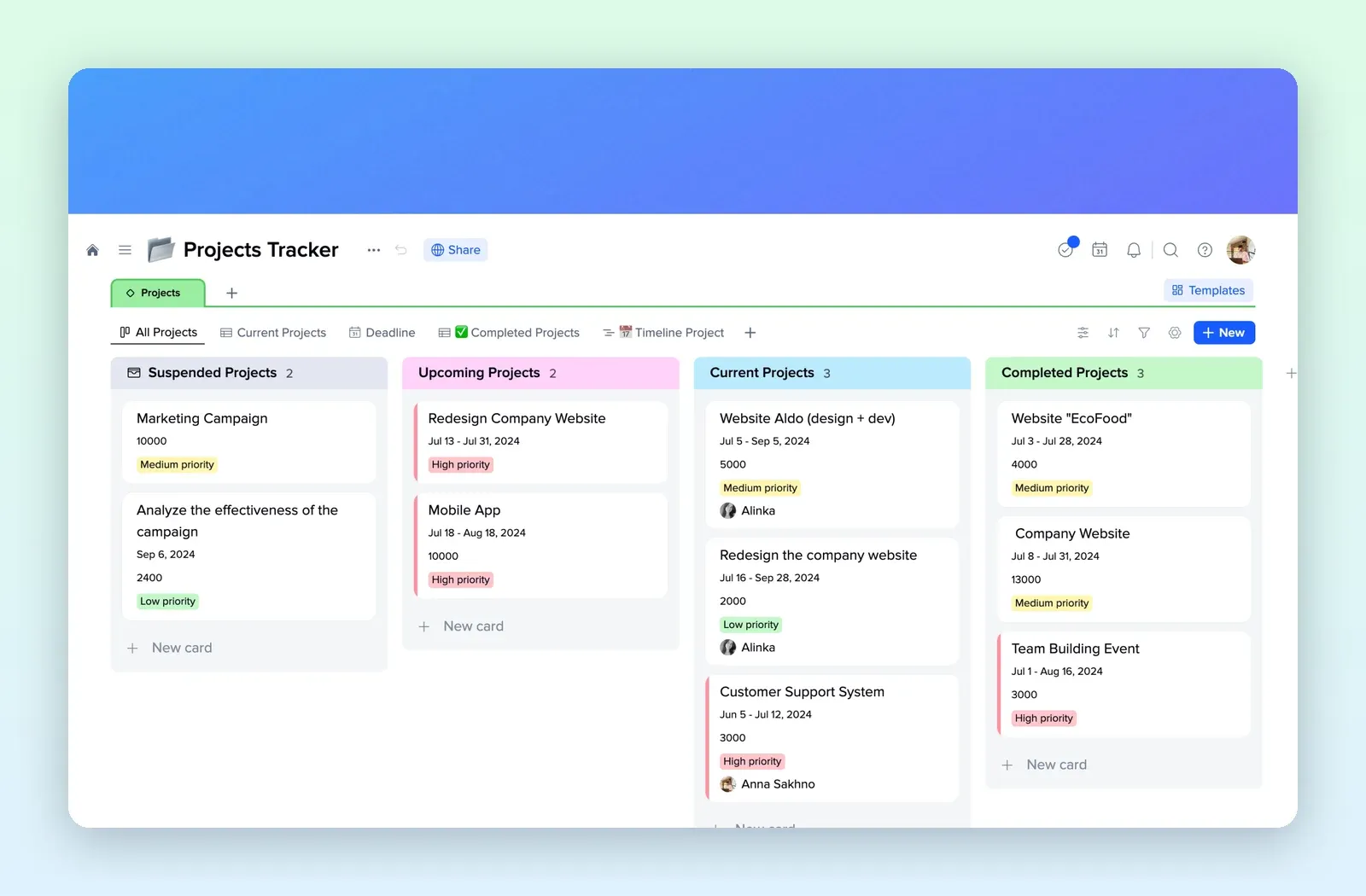
3. Projects Tracker: every client on one board
A collection of projects grouped into suspended, upcoming, current and completed, with dates, budget and priority on each card. Useful for the weekly reset. Open the Projects Tracker template.
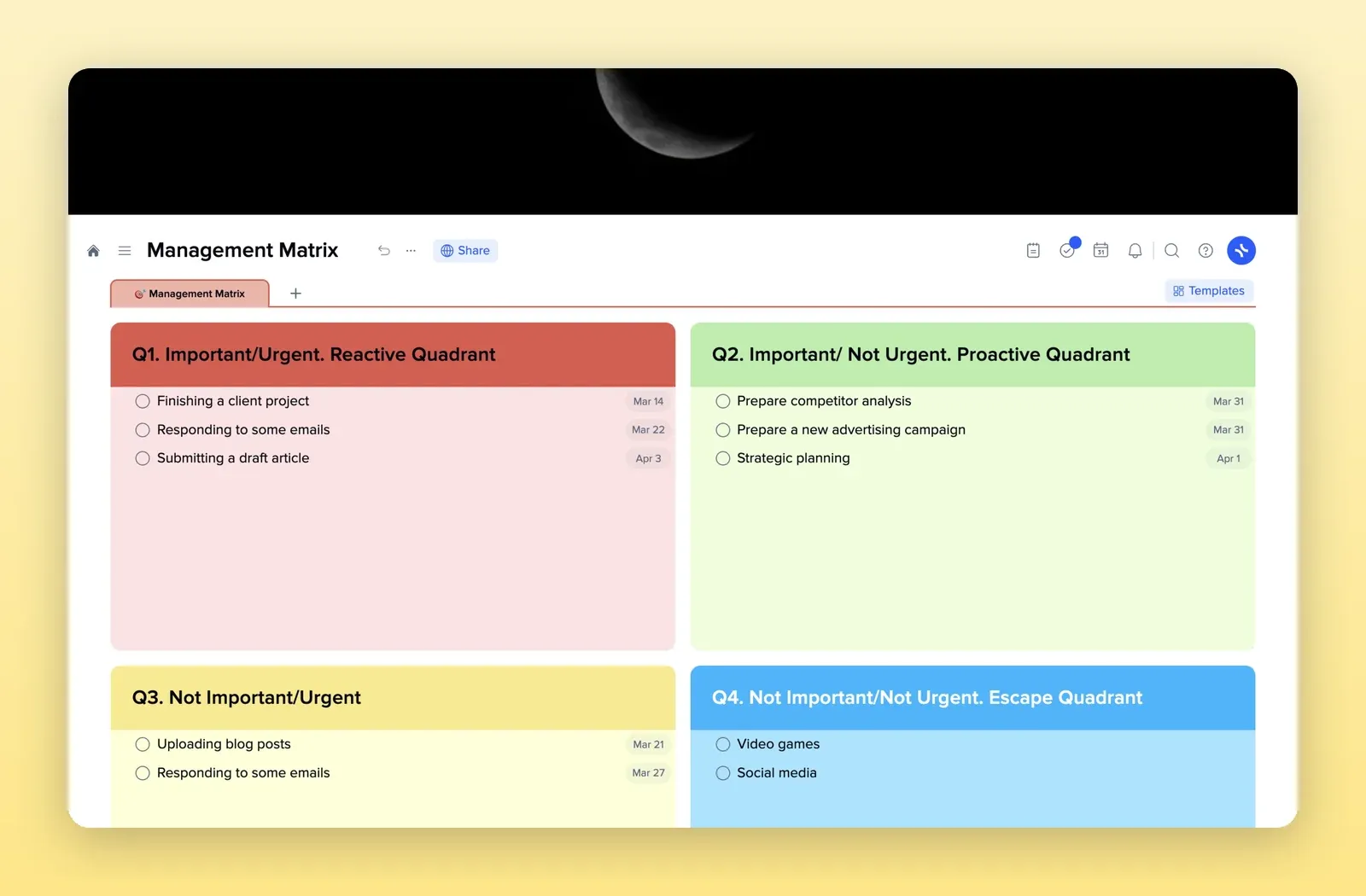
4. Management Matrix: sort what lands on today
Four quadrants from urgent and important to neither. Drop the carried-over tasks here when the list gets long and decide which ones deserve a day. Open the Management Matrix template.